
On an OpenShift cluster
There are two methods to upgrade on an OpenShift cluster:
-
Using the CLI
-
Using OLM
On an OpenShift cluster by using CLI
-
Download
YAML_8.0.320.tar.gzfrom the Veritas Download Center and unzip and untar the file. -
Run the following command on the bastion node:
oc apply -f /YAML/<path>/lico.yaml
Note: Here and in the next command, use the \<path\> where the yaml files are saved.
-
Run the following command on the bastion node:
oc apply -f /YAML/<path>/iso.yaml
-
Run the following command on the bastion node:
oc patch infoscaleclusters.infoscale.veritas.com infoscalecluster-dev --type merge -p '{"spec": {"version": "<upgrade version>"}}'
-
Wait as it might take time to upgrade.
-
Run the following command on the bastion node:
oc get infoscalecluster
The State is 'Upgrading' as under:
NAME                 NAMESPACE      VERSION           STATE     AGE
 infoscalecluster-dev infoscale-vtas <Upgrade version> Upgrading 25h
-
Upgrading InfoScale takes time. After a successful upgrade, the cluster state changes to 'Running'. You can run
oc get infoscaleclusterto verify. -
If you have configured DR, run
oc apply -f /YAML/DR/dro_deployment.yaml.
Ensure that you upgrade the primary and the secondary sites.
On an OpenShift cluster by using OLM
-
Connect to the OpenShift and access the catalog menu.
-
In the left frame, Select Operators > Installed Operators.
-
All InfoScale operators are listed here.
-
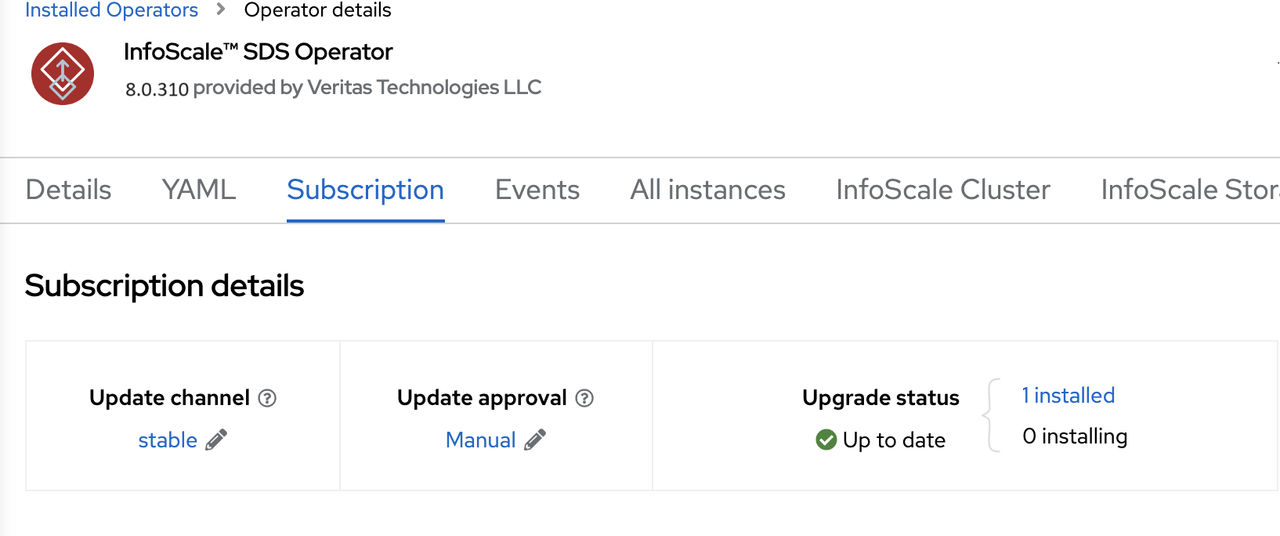
Click InfoScale SDS Operator and theSubscription tab. The following screen opens.
-
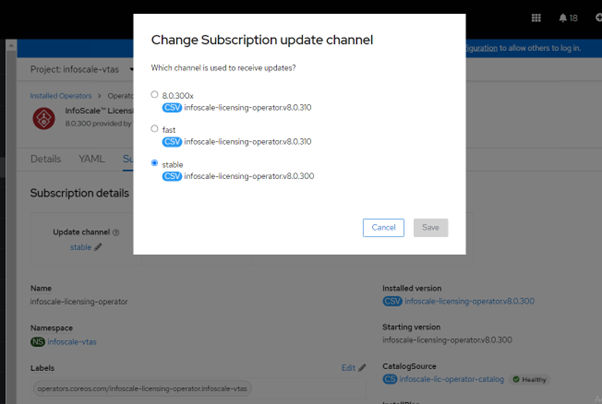
Click Update channel. Select 8.0.300x as under and clickSave.
-
Follow identical steps for the InfoScale Licensing Operator and select 8.0.300x as follows:
-
Select Operators > Installed Operators again.
-
For the InfoScale operators, Upgrade Available is reported in Status as follows:

-
To upgrade InfoScale, click InfoScale or InfoScale Licensing Operator.
-
In Subscription, updates that need approval are displayed next to Upgrade Status.
-
Click the Operator that needs approval, followed by Preview Install Plan.
-
Review the details list. Click Approve if you want to proceed with the upgrade.
-
Wait till it is upgraded and listed in Operators > Installed Operators.
-
Run the following command on the bastion node
oc patch infoscaleclusters.infoscale.veritas.com infoscalecluster-dev --type merge -p '{"spec": {"version": "<upgrade version>"}}'. -
Wait as it might take time to upgrade.
-
Run the following command on the bastion node
oc get infoscalecluster
The State is 'Upgrading' as follows.
NAME                 NAMESPACE      VERSION           STATE     AGE
 infoscalecluster-dev infoscale-vtas \<Upgrade version\> Upgrading 25h
-
Upgrading InfoScale takes time. After a successful upgrade, the cluster state changes to 'Running'. You can run
oc get infoscaleclusterto verify. -
If DR is configured, perform the following steps.
-
Click Infoscale DR Manager Operator. In Subscription, updates that need approval are displayed next to the Upgrade Status.
-
Click the operator that needs approval, followed by Preview Install Plan.
-
Review the details list. Click Approve if you want to proceed with the upgrade.
-
Wait till it is upgraded and listed in Operators > Installed Operators.
-
Ensure that you upgrade the primary and the secondary site.
Note: After upgrading InfoScale, ensure that you upgrade OCP to any of the InfoScale-supported versions. To know the supported OCP platforms, seeSupported platforms. Refer to OpenShift documentation to know how to upgrade OpenShift.
Related information