
Scheduling SQL Server snapshot sets
You schedule and create snapshot sets using the Quick Recovery Configuration Wizard. You can also use the wizard to modify or delete existing schedules or to import a schedule template.
Make sure that you meet the prerequisites before you begin using the wizard.
To schedule snapshot sets
-
Launch the Solutions Configuration Center (SCC).
-
From the Solutions view in the SCC, click SFW Quick Recovery Configuration to launch the wizard.
-
In the Welcome panel, review the information to ensure you meet the requirements and click Next.
-
In the System Selection panel, specify the system that is running the application and click Next.
Ensure that the disk groups for the application are imported to the selected system.
-
In the Instance Selection panel, make the following selections and click Next :
-
Select the SQL instance for which you want to configure the snapshot sets.
-
Select the databases for which you want to configure the snapshot sets.
-
-
If the Mount Details panel is displayed, a volume containing the schedule configuration files is not mounted. Mount the missing drive and click Refresh, then click** Next**.
-
For existing schedules, the Synchronizing Schedules panel displays the status of schedule synchronization and cleanup. If schedule synchronization fails in a clustered environment, restart any cluster nodes that are down and then restart the wizard. Otherwise, click Next.
-
In the Template Selection panel, choose whether to create a new template for Quick Recovery settings, modify existing template settings, or import a template. Then click Next.
-
In the Number of Snapshot Sets panel, select how many sets of snapshots to create for each database. Then click Next.
-
In the Snapshot Volume Assignment panel, expand the snapshot set and configure the settings. Repeat for any additional snapshot sets, and when you finish, click Next.
-
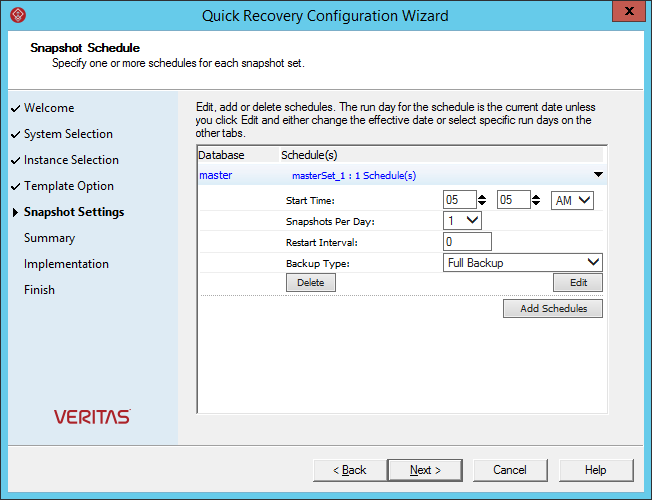
In the Snapshot Schedule panel, specify one or more schedules for each snapshot set. Choose one of the following:
-
To specify a simple schedule, edit the default schedule settings shown on this panel. By default, the simple schedule takes effect on the current date and does not recur.
-
-
To specify a recurring schedule, a time window, a different run date, or other schedule details, click Edit, fill in the Edit Snapshot Schedule dialog box, and click** OK**.
Expired schedules cannot be edited. Instead, delete the expired schedule and add a new one.
After you have specified a schedule for a snapshot set, choose from the following:
-
Edit schedules for any remaining snapshot sets
-
Click Add Schedules if you want to add a new schedule
-
Click Delete if you want to remove a schedule
When scheduling is complete for all snapshot sets, click Next.
-
In the Summary panel, you can choose from the following:
-
Save settings to a template file for later reuse
-
Apply the settings without saving a template
-
Save the settings and then apply them
-
Applying the settings implements the configuration. If you have saved the settings to a template file and want to exit the wizard without applying the template, click Cancel.
-
In the Template Implementation panel, wait until the wizard shows that Quick Recovery configuration is complete and click Next and then clickFinish.
Related information
Implementing Quick Recovery for SQL Server with the configuration wizard
System Selection panel detailsInstance Selection panel detailsMount Details panel detailsSynchronizing Schedules panel detailsTemplate Selection panel detailsNumber of Snapshot Sets panel detailsSnapshot Volume Assignment panel detailsSnapshot Schedule panel detailsSpecifying snapshot schedule detailsSummary panel detailsTemplate Implementation panel