
Replication from on-premises to Azure - Windows
The following diagram illustrates the sample configuration for setting up replication between an on-premises data center to an Azure data center:
Note: For the ease of use, the machines, whether virtual or physical, are commonly mentioned as virtual machines. Your on-premises data center may include physical machines instead of the virtual machines. In any case, the procedure to set up replication from an on-premises data center to a cloud data center remain the same for physical and well as virtual machines.
Figure: Sample configuration for setting up replication between an on-premises data center to cloud data center
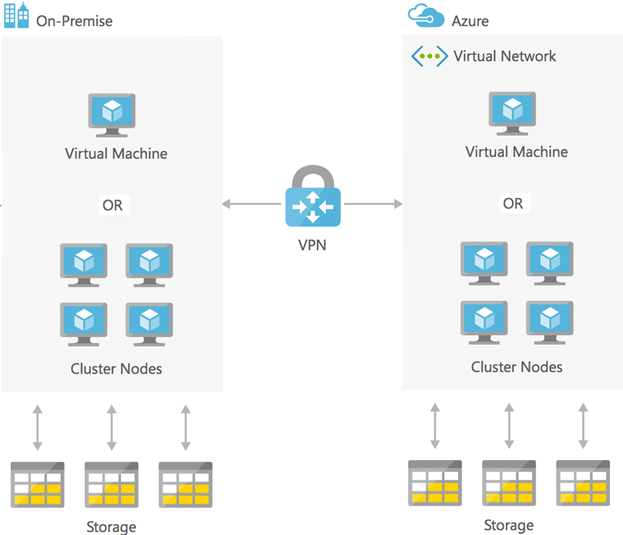
About setting up replication between an on-premise data center to on-cloud data center
Replication between an on-premise data center to on-cloud data center involves the following high-level steps:
-
Prepare the setup at on-premise data center
-
Prepare the setup at on-cloud data center
-
Establish a tunnel from on-premise data center to on-cloud data center
-
Deploy setup
The following sections provide details about performing each of these steps.
Preparing the setup at on-premise data center
To prepare the setup at on-premise data center
-
Enable the ports that are used for inbound and outbound communication.
For details, refer to the Veritas InfoScale Installation and Upgrade Guide - Windows.
-
Create a subnet and a local VPN gateway.
-
Note the address space that is allotted for the subnet and the public IP address that is allotted for the local VPN gateway.
Preparing the setup at on-cloud data center
To prepare the setup at on-cloud data center
-
Using Microsoft Azure portal, create a resource group.
-
Create a VNet in the resource group created and specify an IP address space for the VNet.
The IP address range must be diff on the on-premise subnet and on the on-cloud subnet.
-
Create a gateway subnet.
-
Create a VPN gateway and associate it with the created VNet.
Note the public IP address that is allotted for the on-cloud VPN gateway.
-
Create a local network gateway.
When you create the local network gateway, you must provide the on-premise subnet IP address range and the public IP address of the on-premise local VPN gateway.
-
Establish a tunnel from on-cloud to on-premise network.
To establish the tunnel, create a connection of type Site-to-Site (IPSec) and choose the on-cloud VPN gateway and the local network gateway.
-
Provide a shared key (alpha-numeric key).
A shared key is a pass-phrase. This pass-phrase is required when you establish a tunnel from on-premise data center to cloud data center.
Establishing a tunnel from on-premise data center to on-cloud data center
To establish a tunnel from on-premise data center to on-cloud data center, use the following parameters:
-
Public IP address that is allotted for the on-cloud VPN gateway
-
Shared key (alpha-numeric key) that was provided while establishing a tunnel from on-cloud data center to on-premise data center
-
On-cloud VPN gateway configuration type (Policy based or Route based)
Deploying the setup
To deploy the setup (in both the data centers)
-
Create virtual machines in the subnets created.
-
Provision storage.
-
Install the appropriate InfoScale product.
-
Create VxVM disk groups, VxVM volumes, Replicated Volume Group (RVG), and RLinks.
-
Flush the iptables on both the virtual machines.
# iptable -F
-
Set up replication between the virtual machines using the private IP address or the virtual IP address.
-
Verify the replication status.
# vradmin -g dg_name repstatus rvg_name
Ensure that the replication status shows:
Replication status: replicating (connected)
Related information