
Replication within an Azure region - Linux
In an Azure cloud environment, in a single region, you can provision your setup across virtual networks (VNets) or within a VNet.
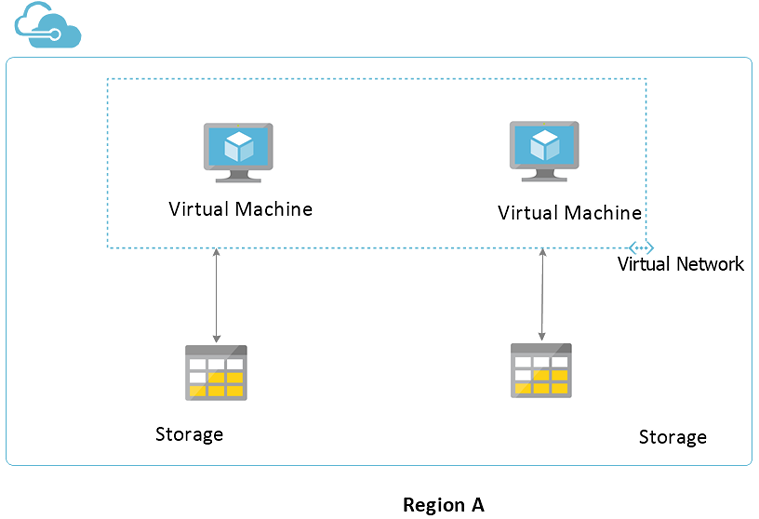
The following diagram illustrates the sample configuration for setting up replication between the same VNet:
Figure: Sample configuration for setting up replication between same VNet
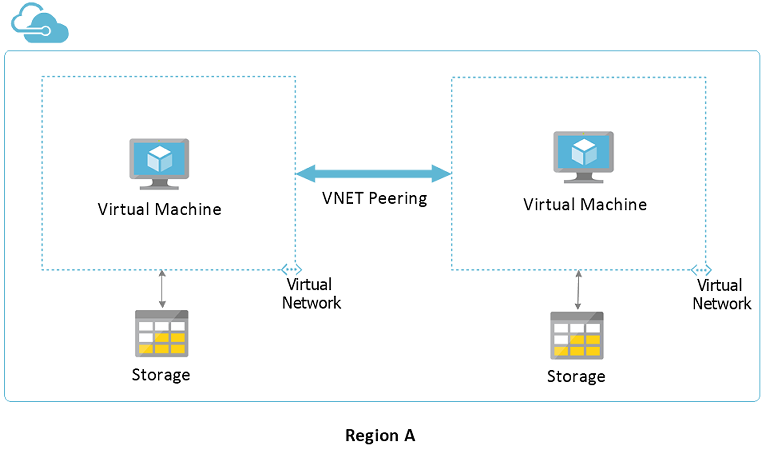
The following diagram illustrates the sample configuration for setting up replication across VNets:
Figure: Sample configuration for setting up replication across VNets
Setting up replication in the same VNet
Perform the following steps to set up replication in the same VNet, within the same region
-
Enable the ports that are used for inbound and outbound communication.
For a list of required ports and services, refer to, Veritas InfoScale Replication Administrator's Guide - Linux.
-
Using Microsoft Azure portal, create a VNet and specify an IP address space for the VNet.
-
Create a subnet in the VNet created.
For details about creating a VNet, specifying an IP address space, and creating a subnet, refer to Microsoft documentation.
-
Create two virtual machines within the subnets and provision storage.
-
Install the appropriate InfoScale product on both the virtual machines.
-
Create VxVM disk groups, VxVM volumes, Storage Replicator Log (SRL), Replicated Volume Group (RVG), and RLinks.
For details refer to, Storage Foundation Cluster File System High Availability Administrator's Guide.
Note: In Azure environment, by default, in addition to the storage disks that you have attached, every virtual machine that is provisioned contains a temporary resource disk, that serves as an ephemeral storage. Do not use the temporary resource as a data disk (VxVM disk) to store persistent data. The disk may change after a machine is redeployed or is restarted, and the data will be lost. For more information about how Azure uses a temporary disk, see Microsoft documentation. For details about how to identify a temporary resource disk: SeeAbout identifying a temporary resource disk - Linux.
-
Flush the iptables on both the virtual machines.
# iptable -F
-
Set up replication between the virtual machines using the private IP address or the virtual IP address.
For details about setting up replication see Setting up replication in the Veritas InfoScale Replication Administrator's Guide - Linux.
-
Verify the replication status.
# vradmin -g dg_name repstatus rvg_name
Ensure that the replication status shows:
Replication status: replicating (connected)
Setting up replication across VNet
Perform the following steps to set up replication across the VNets, within the same region
-
Using Microsoft Azure portal, create two VNets and specify an IP address space for each VNet.
-
Set up VNet Peering between the two VNets.
-
Create a subnet in each VNet.
-
Create a virtual machine in each subnet and provision storage.
-
Install the appropriate InfoScale product on both the virtual machines.
-
Create VxVM disk groups, VxVM volumes, Storage Replicator Log (SRL), Replicated Volume Group (RVG), and RLinks.
For details refer to, Storage Foundation Cluster File System High Availability Administrator's Guide.
Note: In Azure environment, by default, in addition to the storage disks that you have attached, every virtual machine that is provisioned contains a temporary resource disk, that serves as an ephemeral storage. Do not use the temporary resource as a data disk (VxVM disk) to store persistent data. The disk may change after a machine is redeployed or is restarted, and the data will be lost. For more information about how Azure uses a temporary disk, see Microsoft documentation. For details about how to identify a temporary resource disk: SeeAbout identifying a temporary resource disk - Linux.
-
Flush the iptables on both the virtual machines.
# iptable -F
-
Set up replication between the virtual machines using the private IP address or the virtual IP address.
For details about setting up replication see Setting up replication in the Veritas InfoScale Replication Administrator's Guide - Linux.
-
Verify the replication status.
# vradmin -g dg_name repstatus rvg_name
Ensure that the replication status shows:
Replication status: replicating (connected)
Related information