
InfoScale FSS feature for storage sharing in cloud environments
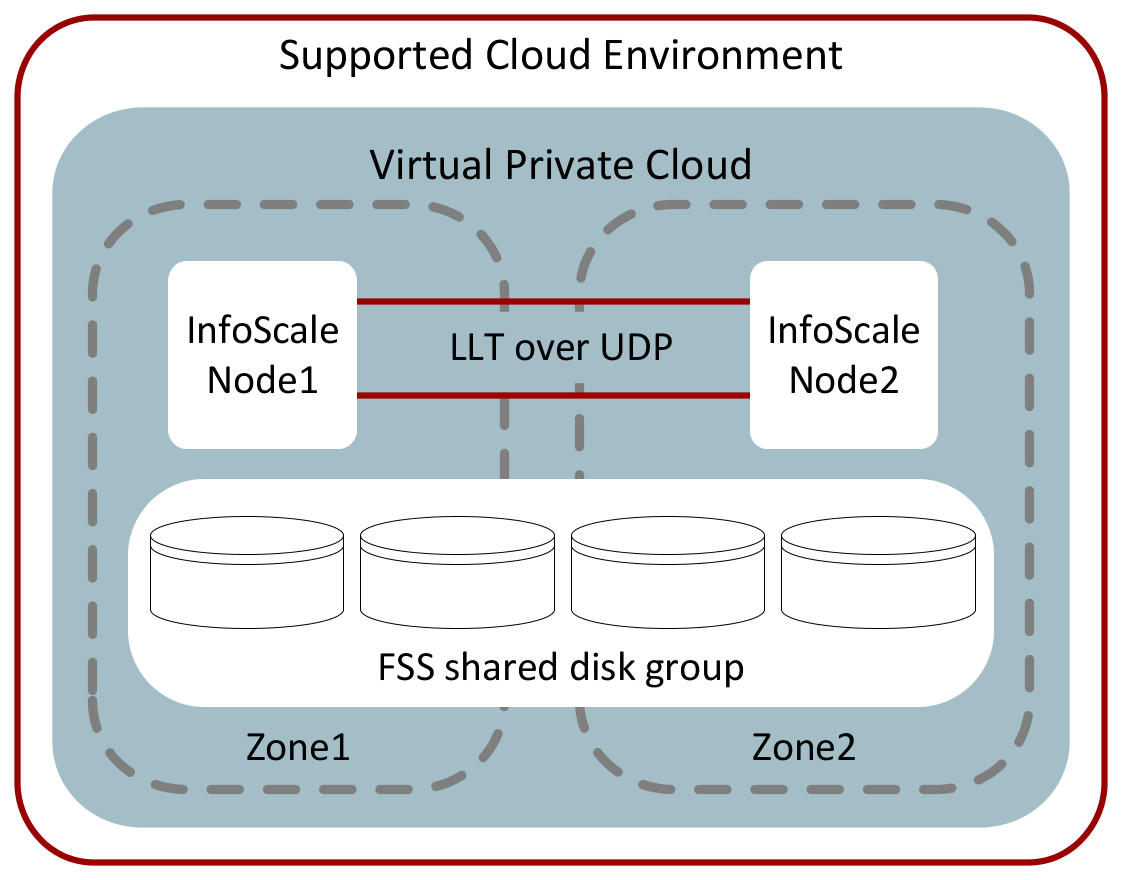
InfoScale supports flexible storage sharing (FSS) in cloud environments for a cluster that is located within the same region. The nodes in the cluster may be located within the same zone or across zones (Availability Zone in case of AWS and user-defined site in case of Azure). FSS leverages cloud block storage to provide shared storage capability.
Storage devices that are under Volume Manager (VxVM) control are prefixed with the private IP address of the node. You can override the default behavior with the
vxdctl set hostprefix command. For details, see the Storage Foundation Cluster File System High Availability Administrator's Guide - Linux.
VxVM provides the ability to grow the existing storage by growing the LUN, which is termed as Dynamic LUN Expansion (DLE). You can leverage DLE to grow the storage in cloud environments. To use the DLE feature, you invoke the
vxdisk resize command with the length option from the master node in an FSS configuration. Alternatively, you can use the Management Server console of InfoScale Operations Manager to resize a disk, which internally invokes this command. The command intelligently detects the remote disks and gets the required protocol executed to complete the LUN expansion; you do not need to specify any additional options. No explicit master switching is required. For details on growing the existing storage by growing the LUN, refer to the Storage Foundation Administrator's Guide - Linux.
Note: Do not resize an LVM disk or any other disk on which the OS is installed.
In cloud environments, FSS in campus cluster configurations can be used as a disaster recovery mechanism, across data centers within a single region. For example, in AWS, nodes within an AZ can be configured as one of the campus cluster site, while the nodes in another AZ can be configured as the second site. For details, see the InfoScale Disaster Recovery Implementation Guide - Linux.
Figure: Typical FSS configuration in a supported cloud environment
Note: (Azure only) By default, in addition to the storage disks that you have attached, every virtual machine that is provisioned contains a temporary resource disk. Do not use the temporary resource disk as a data disk. A temporary resource disk is an ephemeral storage that must not be used for persistent data. The disk may change after a machine is redeployed or restarted, and the data is lost. SeeAbout identifying a temporary resource disk - Linux. For details on how Azure uses a temporary disk, see the Microsoft Azure documentation. Note: (Azure only) In case your configuration uses Premium SSD v2 disks, remember that they are shared across all the VMs in a zone, by default. Such disks can be unintentionally attached to non-InfoScale-cluster VMs, without any error or warning. To restrict the disk access to InfoScale cluster nodes and thus prevent unauthorized use, set theDisk.MaxSharesproperty of the Azure disk to1. Note: (GCP only) When VCS is stopped and started on VM instances, or after a node restarts, the import and recovery operations on FSS diskgroups may take longer than expected. The master cannot import a diskgroup until all the nodes have joined the cluster. Some nodes may join their cluster with some delay. In that case, a diskgroup import operation takes longer than expected to succeed. Even if the master initially fails to import the diskgroup due to such a delay, the operation completes successfully later on retry.
Considerations for LLT
In cloud environments, FSS is supported with LLT over reliable UDP configurations only. Acrtera recommends that you configure LLT over UDP for both, FSS and non-FSS clusters in the cloud.
Cloud-based networks are relatively slow and have high latency as compared to physical networks.
To achieve better LLT performance in such high-latency cloud networks, set the following tunable values before you start LLT or the LLT services:
-
set-flow window:10 -
set-flow highwater:10000 -
set-flow lowwater:8000 -
set-flow rporthighwater:10000 -
set-flow rportlowwater:8000 -
set-flow ackval:5 -
set-flow linkburst:32
For details on the usage of these tunables, refer to the Cluster Server Administrator's Guide - Linux.
Related information