
Usage reports for customers
The License Management Service (LMS) offers two methods for collecting usage reports for the License Analytics Service (LAS):
-
Online Method: Usage reports are automatically synced from LMS to LAS.
-
Offline Method: Users manually upload the usage reports generated by LMS to the LAS console.
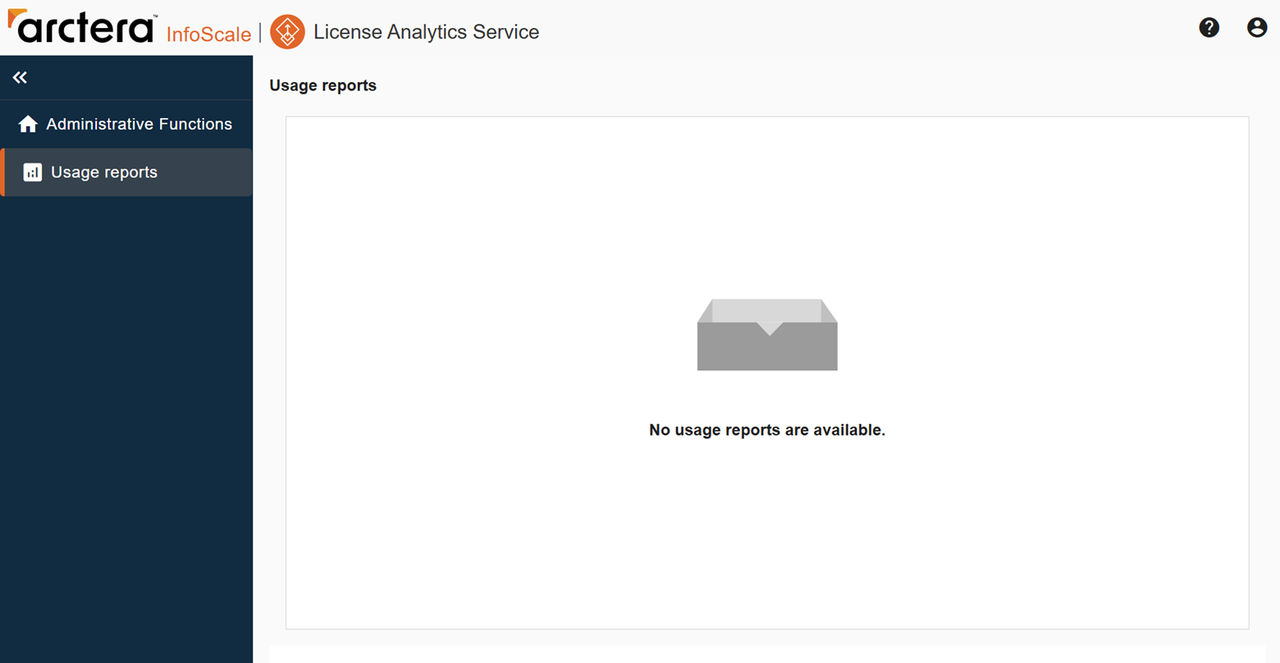
To access all the customer usage reports submitted through both the online and offline modes, log in to the LAS portal. Click Usage reports in the left navigation panel. The following screen shows the Usage reports tab (currently empty) as it appears in the user interface.
Uploading Usage report to LAS
Perform the following steps to upload the Usage report generated from LMS to the License Analytics Service (LAS) console.
-
Sign in to the Arctera SSO portal and then from the list of application services displayed, click License Analytics Service.
-
Use the LAS user login credentials to sign in to the LAS portal.
-
Review the End User License Agreement (EULA) and click Accept to proceed.Note: The EULA notification appears only on the first login.
-
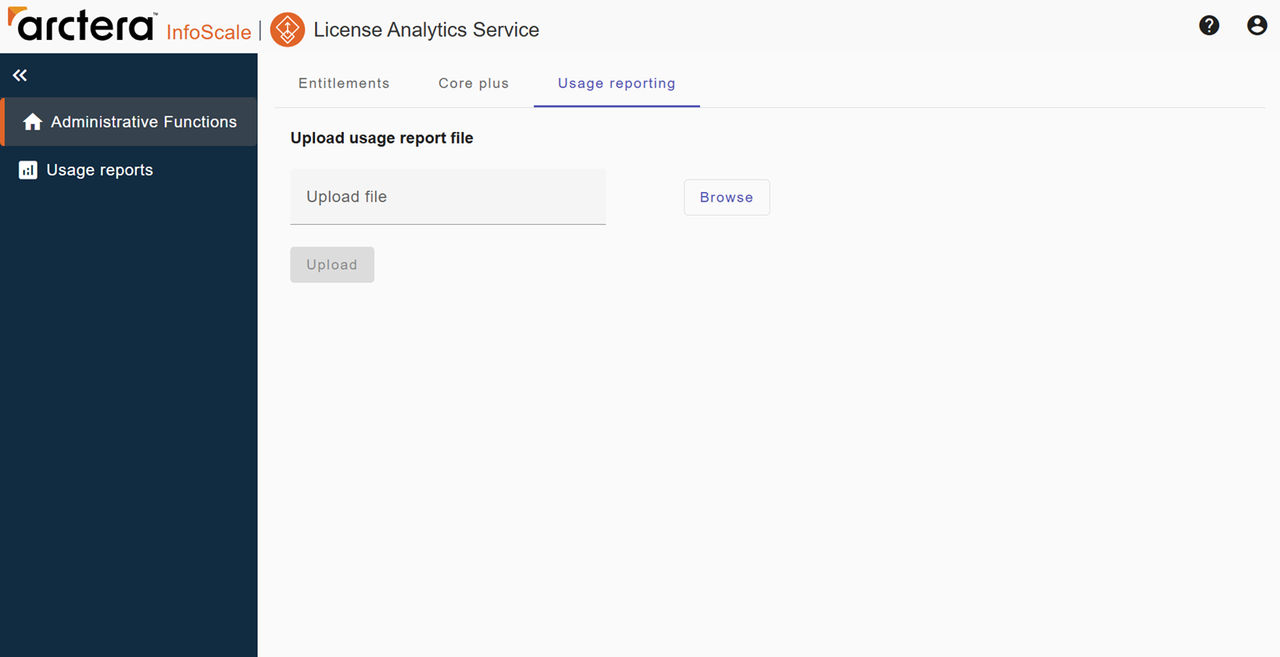
Click the Usage reporting tab and then click Browse and select the report file that you generated from LMS.
On successful upload, the reports file is shared with Arctera as follows:
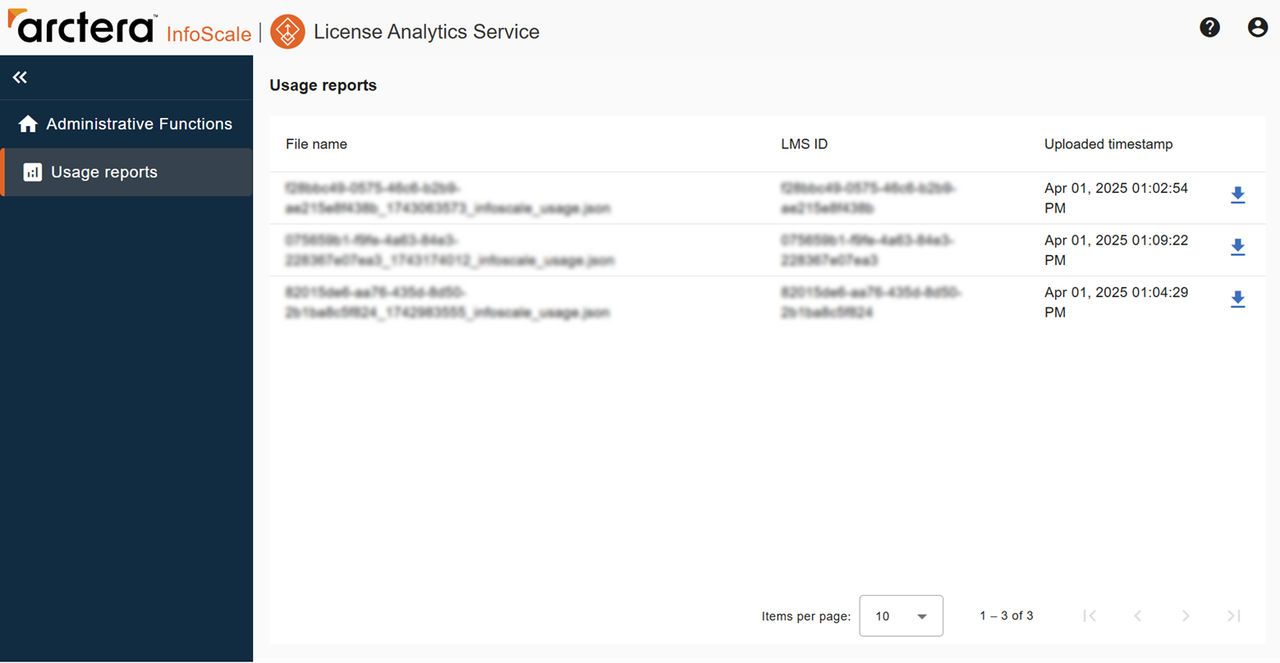
To download any customer usage report submitted to the LAS portal, click 'download' button available at the end of each report row.
Related information